


Reduce Screen Time Using iPhone & Android Settings

How to reduce screen time in settings
Most phones include built-in tools that make cutting back simple—if you know where to look. By using your device’s Screen Time (iPhone) or Digital Wellbeing (Android) settings, you can set daily limits, quiet notifications, and schedule downtime so your phone stops pulling you back in.
On iPhone (Screen Time)
Open Settings > Screen Time, then tap Turn On Screen Time if it isn’t enabled. Start with Downtime to schedule hours when only approved apps work (great for evenings or work blocks). Next, go to App Limits and add limits for categories like Social Networking, Games, or Entertainment, or set limits per app.
For quick wins, open Always Allowed and keep the list tight—only essentials like calls, messages, maps, or music. Finally, under Communication Limits, restrict who can contact you during downtime if interruptions are a major trigger.
On Android (Digital Wellbeing)
Open Settings > Digital Wellbeing & parental controls. Tap the dashboard to set App timers for the biggest time-sinks. Use Focus mode to pause distracting apps during chosen hours, and enable Bedtime mode to dim the screen, reduce alerts, and help you disconnect at night.
Make the limits harder to ignore
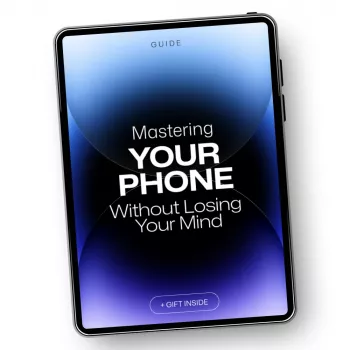
Limits work best when paired with fewer prompts. Turn off nonessential notifications, remove attention-grabbing apps from your home screen, and keep widgets lean. If you need a broader plan for reducing distractions and building better phone habits, see the full guide here: https://splendena.com/guide-tame-your-phone-cut-distractions-regain-focus-fast/.
For Reduce Screen Time Using iPhone & Android Settings, the best answer depends on fit, material, care instructions, and how the product will be used day to day.
Checking those details first helps avoid a poor match and keeps the choice practical after delivery.
For Reduce Screen Time Using iPhone & Android Settings, the best answer depends on fit, material, care instructions, and how the product will be used day to day.
FAQ
Does turning on grayscale help reduce phone use?
Yes. Switching the display to grayscale makes apps feel less stimulating, which can reduce mindless scrolling—especially on social media and short-form video apps.










Leave a comment