


Zapier Workflow Playbook for Busy Solopreneurs

Zapier for Small Businesses: A Step-by-Step Workflow Playbook for Busy Solopreneurs
Manual copy-paste work quietly drains hours every week—especially when leads, invoices, customer messages, and files live in different apps. Zapier connects those apps so routine steps happen automatically. This guide walks through choosing a high-impact process, building a first Zap safely, and expanding into reliable multi-step workflows that keep sales and operations moving without constant checking. For more guidance, see Get started with Zapier.
What Zapier Does (and When It’s the Right Tool)
Zapier is a connector that lets your apps “talk” to each other using simple rules. One event starts the automation, and then one or more steps happen in the background. For further reading, see How To Use Zapier: A Beginner’s Guide To Workflow Automation.
- Connects apps with triggers (an event happens) and actions (a result happens).
- Best for repeatable, rules-based tasks: moving data, creating records, sending notifications, updating spreadsheets/CRMs.
- Not ideal for highly custom logic that needs a full database or complex conditional branching beyond typical business rules.
- Common outcomes: fewer missed follow-ups, cleaner records, faster response times, and consistent handoffs.
If your day involves bouncing between your form tool, inbox, calendar, spreadsheet, and CRM, Zapier is usually the quickest way to turn that bouncing into a straight line. For official documentation and troubleshooting references, Zapier’s Help Center is the most reliable source.
Pick One Workflow Worth Automating First
The fastest wins come from choosing one process that happens often and has a clear “start” and “finish.” Keep the first build intentionally small so you can validate data quality and reduce surprises.
- Start with a process that happens frequently (daily/weekly) and costs time or causes mistakes.
- Choose a workflow with a clear start event (new form submission, new email, paid invoice, new calendar booking).
- Define the end state: where the info should land and who needs to be notified.
- Keep the first build simple: 1 trigger + 1–2 actions before adding branching logic.
Fast wins to automate first
| Business moment | Trigger (start) | Actions (result) | Why it pays off |
|---|---|---|---|
| New lead captured | New Typeform/Google Form response | Create/Update contact in CRM + send Slack/email alert | Speeds follow-up and reduces lost leads |
| Appointment booked | New Calendly event | Create Zoom/Meet link + add to Google Calendar + send confirmation email | Cuts back-and-forth scheduling |
| Invoice paid | Successful payment in Stripe/PayPal | Mark invoice paid in accounting sheet + notify delivery/onboarding | Prevents fulfillment delays |
| New support message | New Zendesk/Gmail label | Create ticket/task in Asana/Trello + assign owner | Improves response consistency |
| New file received | New attachment in Gmail/Drive folder | Save to structured Drive folder + log link in Airtable/Sheet | Keeps assets organized automatically |
Build a Simple Zap in 10 Steps
A first Zap is mostly about clean inputs, correct field mapping, and testing with real sample data. Zapier’s own walkthroughs can also be helpful for seeing what each step looks like on-screen (see Getting Started with Zaps).
If you’re looking for a guided, checklist-style walkthrough that’s built for solo operators, Zapier to Automate Your Tasks – Step-by-Step Guide on how to use zapier to automate tasks for Small Businesses & Solopreneurs is a quick reference you can keep open while building.
Make Workflows Reliable: Filters, Paths, and Error-Proofing
As you expand into more apps, it helps to confirm each integration supports the exact trigger/action you need. Zapier’s Apps Directory is the fastest way to check what’s possible before you redesign your process around the wrong assumption.
Three Ready-to-Use Automation Recipes for Solopreneurs
1) Lead capture to follow-up
2) Content pipeline that doesn’t rely on memory
3) Client onboarding without bottlenecks
Security, Permissions, and Client Data Basics
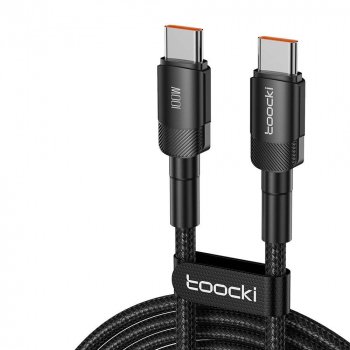
On a practical level, reliability also depends on your day-to-day setup. If you’re often working from coffee shops, client sites, or co-working spaces, keeping a dependable charging cable in your bag can prevent “dead laptop” days that derail both manual work and automation monitoring. The 100W USB-C to USB-C Fast Charging Cable with PD 3.0 & QC 4.0 – 5A Power is a simple, low-cost backup that supports fast charging for many modern devices.
A Lightweight Maintenance Routine That Prevents Breakages
Step-by-Step Guide for Building Confident Automations
If you want a practical companion while you build, bookmark Zapier to Automate Your Tasks – Step-by-Step Guide on how to use zapier to automate tasks for Small Businesses & Solopreneurs and use it as a checklist when you set up triggers, field mappings, filters, and deduping steps.
FAQ
What is the easiest task to automate first with Zapier?
A high-frequency, low-risk workflow is usually best, like sending a new form submission into a spreadsheet or CRM and triggering a simple notification. Start with 1 trigger and 1 action so you can test field mapping and confirm the data arrives cleanly.
How can duplicates be prevented when sending leads into a CRM or email list?
Use “Find or Create” (or “Find” + “Create if not found”) and match on email so returning leads update instead of duplicating. Add filters to stop blank/invalid emails and use formatting steps to standardize fields before they hit your CRM or list.
What should be checked when a Zap stops working?
Check Task History to see the exact error, then confirm the app connection is still authenticated and that the source fields haven’t been renamed or removed. Also watch for rate limits or changed permissions, and re-test key Zaps monthly to catch issues before they stack up.










Leave a comment