

One Wireless Bluetooth Gamepad for Android, PC & Switch
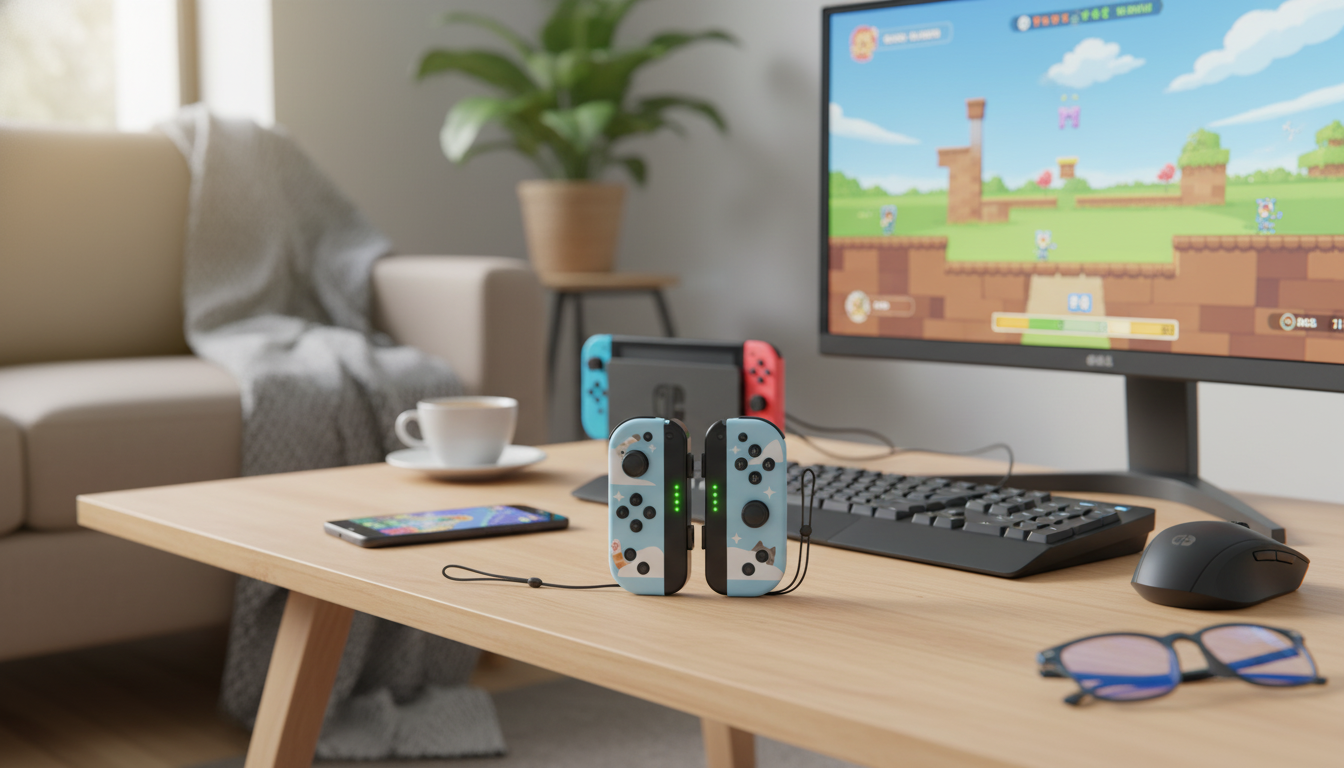
Wireless Bluetooth Gamepad for Android, PC, and Nintendo Switch: One Controller, Three Ways to Play
A single controller that can move between phone, laptop, and console makes gaming more convenient—whether playing on the couch, at a desk, or on the go. A cross-platform wireless gamepad can simplify your setup, reduce clutter, and keep your muscle memory consistent across devices. Below is a practical guide to what to expect from a multi-device Bluetooth controller, how pairing typically works on Android, Windows PCs, and Nintendo Switch, and what to check for comfort, latency, and long-session reliability before buying.
What a Cross‑Platform Wireless Gamepad Should Do Well
The best “one controller for everything” experience comes down to a few fundamentals that matter more than flashy extras.
- Stable Bluetooth connection with minimal input delay for action, racing, and platform games.
- Comfortable shape and grip for longer sessions; a balanced weight helps reduce hand fatigue.
- Responsive sticks and triggers; consistent dead zones and smooth diagonals matter for aiming and steering.
- Clear pairing workflow and easy switching between devices (phone ↔ PC ↔ Switch).
- Good battery life and straightforward charging; being able to play while charging is a major plus.
When those basics are right, the controller tends to “disappear” in your hands—meaning you spend more time playing and less time troubleshooting.
Quick Compatibility Check: Android, PC, and Switch
Cross-platform compatibility is real, but it’s not identical on every system. OS settings, game support, and even button prompts can vary.
Device pairing and play checklist
| Platform | Pairing steps | Best use cases | Common gotchas |
|---|---|---|---|
| Android phone/tablet | Enable Bluetooth → Pair controller → Confirm in game/app | Mobile shooters, racing, platformers, cloud gaming | Some games ignore controllers; map buttons in settings when available |
| Windows PC | Bluetooth settings → Add device → Select controller → Test in game | Steam games, action/adventure, indie titles | Button prompts may vary; older games may need remapping |
| Nintendo Switch | System Settings → Controllers → Change Grip/Order → Pair | Docked couch play, party games, platformers | Layout may feel swapped vs Switch; adjust muscle memory or remap if supported |
For step-by-step OS guidance, the official help pages are useful references: Android Help: Connect a Bluetooth device, Microsoft Support: Connect a Bluetooth device in Windows, and Nintendo Support: Pairing and managing controllers on Nintendo Switch.
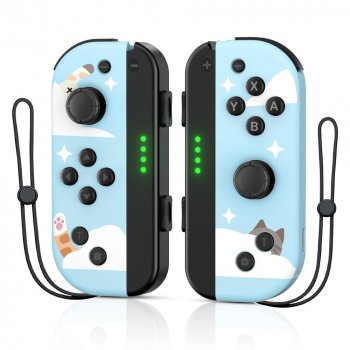
Featured Option: Wireless Bluetooth Gamepad for Android, PC, and Nintendo Switch
If you want one controller that can follow you from mobile to PC to console without building a whole drawer of peripherals, a dedicated multi-platform model is the simplest approach. The Wireless Bluetooth Gamepad for Android, PC, and Nintendo Switch is designed specifically for that kind of three-device routine.
- One controller across major platforms, helping reduce the need to buy separate gamepads for different devices.
- Wireless play keeps setups clean—useful for docked Switch sessions, living-room PCs, and phone gaming without a cable hanging over the screen.
- Practical for casual to regular play where fast setup, portability, and broad compatibility matter.
- Before checkout, confirm your favorite games support controllers on each platform and plan a charging option for longer sessions.
For many players, the biggest quality-of-life win is consistency: one familiar feel for sticks, triggers, and face buttons—no matter which screen you’re using.
Setup Tips for a Smoother Experience
Bluetooth controllers are generally easy to live with, but small adjustments can noticeably improve stability and responsiveness.
- Reduce interference: keep the controller within a clear line of sight of the device when possible, and avoid crowded 2.4 GHz sources (busy USB hubs, older routers nearby, multiple wireless dongles).
- Update software: keep Android, Windows, and Switch firmware current to improve Bluetooth performance and controller compatibility.
- Calibrate and test: use in-game sensitivity and dead-zone controls for sticks; enable drift correction or calibration tools when a game provides them.
- On PC: check Steam controller settings (or your launcher’s input settings) so the controller is detected correctly and the game shows the button prompts you expect.
- On Switch: if the button layout feels “reversed,” look for system-level remapping options or in-game control swaps when supported.
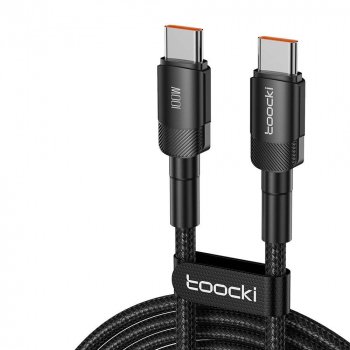
For longer play sessions, a reliable cable can prevent downtime. Pairing your controller with a fast, durable charging option like the 100W USB-C to USB-C Fast Charging Cable with PD 3.0 & QC 4.0 – 5A Power can make it easier to keep accessories powered up across different devices.
Comfort, Controls, and Latency: What to Look For
Specs rarely tell the whole story. How a controller feels after 30 minutes—and after 3 hours—is often what decides whether it becomes your daily driver.
Who This Type of Controller Fits Best
FAQ
How do you pair a Bluetooth controller with a Nintendo Switch?
On the Switch, go to Controllers and choose “Change Grip/Order,” then put the controller into pairing mode and select it when it appears. Pairing is typically easiest while docked, and some controllers may use different A/B and X/Y labeling than the Switch’s default layout.
Will a Bluetooth gamepad work with Android games automatically?
Many modern Android games support controllers right away, but some require enabling controller mode or mapping buttons in the game’s settings. Cloud gaming apps and emulators often include their own button-mapping tools if the default layout isn’t recognized.
Why does a controller feel laggy over Bluetooth on PC?
Lag can come from interference, longer distance, a low-quality Bluetooth adapter, too many connected wireless devices, or aggressive power-saving settings. Trying a different USB Bluetooth dongle, moving closer, or switching to a wired connection (if supported) can reduce delay.










Leave a comment