
Read Tech Specs Like a Pro: Screen Size, RAM, Battery
How to Read Tech Specs Without Getting Tricked by the Numbers
Tech spec sheets can look precise while still hiding what matters for daily use. The fastest processor, the highest resolution, the biggest “up to” battery estimate—none of that guarantees the device will feel good in your hands, fit your bag, or stay comfortable during long sessions. The goal is simpler: translate specs into real-life decisions that match routines like commuting, studying, streaming, and working. Screen size is often the biggest comfort and usability lever, so it deserves attention early—before you get lost in CPU model names.
Start With Your Everyday Use Cases
Before comparing two models, write down the top three things the device must do well. That short list turns a spec sheet into a checklist.
- List the top 3 tasks (examples: email + docs, photo/video, gaming, video calls, travel).
- Set non-negotiables: portability, battery life, screen comfort, durability, and a budget ceiling.
- Translate tasks into priorities (video calls → webcam + mic; commuting → weight + battery + brightness).
- Avoid “maxing out specs” when the workload is light; identify the bottleneck spec for the main task.
If your main task is writing and research, a balanced configuration (comfortable screen, enough RAM, solid battery) will feel better every day than a top-tier CPU paired with a dim display or cramped keyboard.
Screen Size Matters More Than Most Specs
For many shoppers, screen size affects satisfaction more than small differences in CPU speed. It shapes posture, eye strain, multitasking, and whether you actually want to carry the device.
- Match size to context: frequent travel favors smaller screens; desk-first setups can go larger for reduced eye strain and better split-screen work.
- Consider how the device is used: handheld reading, lap use, external monitor pairing, or stand/kitchen counter viewing.
- Don’t judge by diagonal alone: aspect ratio changes usable workspace (16:9 vs 16:10 vs 3:2) and how tall webpages/documents feel.
Quick screen-size fit guide
| Screen size range | Best for | Trade-offs to expect |
|---|---|---|
| 6–7 inches (phones) | Pocket carry, quick messaging, maps, one-handed use | Limited multitasking; long reading/editing can feel cramped |
| 8–9 inches (small tablets) | Reading, travel entertainment, light note-taking | Keyboard work is possible but less comfortable; smaller split-screen |
| 10–11 inches (tablets/2-in-1) | Streaming, casual browsing, moderate productivity | Can be awkward for tight bags; may need higher brightness for outdoor use |
| 12–14 inches (laptops) | Everyday productivity, school/work, portability balance | Less immersive for media than larger screens; gaming can feel tighter |
| 15–16 inches (laptops) | Multitasking, spreadsheets, creative work, more comfortable viewing | Heavier and larger chargers; less travel-friendly |
| 24–27 inches (monitors) | Home office, long sessions, clear multi-window workflows | Needs desk space; portability is none |
Display Specs That Actually Change the Experience
Once size is in the right zone, display specs determine whether the screen is comfortable and legible where you actually use it.
For HDR claims, it helps to know what standards look like in practice; VESA DisplayHDR outlines common tiers and requirements.
Performance Specs: CPU, RAM, Storage (Without the Hype)
Spec-to-real-life translation
| Spec line on the box | What it affects | What to choose for everyday use |
|---|---|---|
| Processor (CPU) model | App speed for heavy tasks, exports, complex games | Prioritize midrange+ for school/work; higher-end mainly for creative/pro workloads |
| RAM (GB) | How well multitasking stays smooth | Enough for your typical tab/app load; more if you keep many apps open all day |
| Storage (GB) + type | Startup speed + space for files | SSD/modern flash for responsiveness; size based on photos/videos and offline needs |
| Graphics (integrated/dedicated) | Gaming, 3D, some creative tools | Integrated is fine for general use; dedicated helps for gaming/3D workloads |
Battery, Charging, and Real-World Portability
Ports, Connectivity, and Compatibility Checks
For reliable decoding of USB logos and versions, reference the official USB-IF documentation. For wireless accessory expectations, the Bluetooth SIG is the authoritative source on Bluetooth versions and features.
Cameras, Audio, and Calls: Specs vs Results
Build Quality, Durability, and Support
A Simple Method to Compare Two Products in 10 Minutes
Digital Download: How to Read Tech Specs Like a Pro
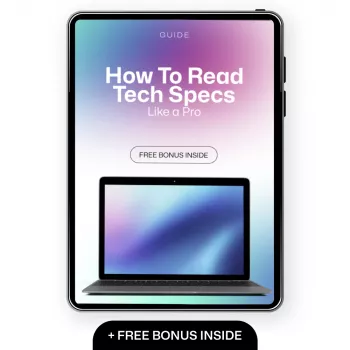
If you want a fast reference you can reuse whenever you shop, How to Read Tech Specs Like a Pro (Digital Download) is built as a practical, printable-friendly checklist. It keeps the focus on the specs that change everyday comfort—especially screen size decisions—so you can turn long spec sheets into clear yes/no answers.
For a real-world example of why spec interpretation matters, higher-end gear like the 125mm F10 Schmidt-Cassegrain Computerized GoTo Astronomical Telescope with StarBright XLT often lists impressive numbers, but usability comes down to how the features fit your setup, storage space, and learning curve.
FAQ
Is a bigger screen always better for everyday use?
No—bigger screens can be more comfortable for long sessions and multitasking, but they cost you portability and often battery life. Desk-first use typically benefits from larger displays, while frequent commuting favors sizes that fit your bag and feel manageable in tight spaces. Aspect ratio and brightness can matter as much as diagonal size for reading and document work.
Which matters more: RAM or processor?
For everyday smoothness with lots of browser tabs and apps, RAM often makes the bigger difference. For heavy creation, exports, and demanding games, the processor (and sometimes the GPU) becomes more important. Balanced configurations usually feel best because a strong CPU can’t compensate for too little RAM.
What display specs should be prioritized for reading and office work?
Prioritize screen size and aspect ratio first, then brightness and reflection handling for your typical lighting. Text clarity is driven by pixel density (PPI) and comfortable scaling, not just raw resolution. Higher refresh rates are nice for scrolling, but they’re optional for non-gaming productivity.










Leave a comment