


Nano Cleaning Ball Brush Set: Keyboard & Screen Detail Kit
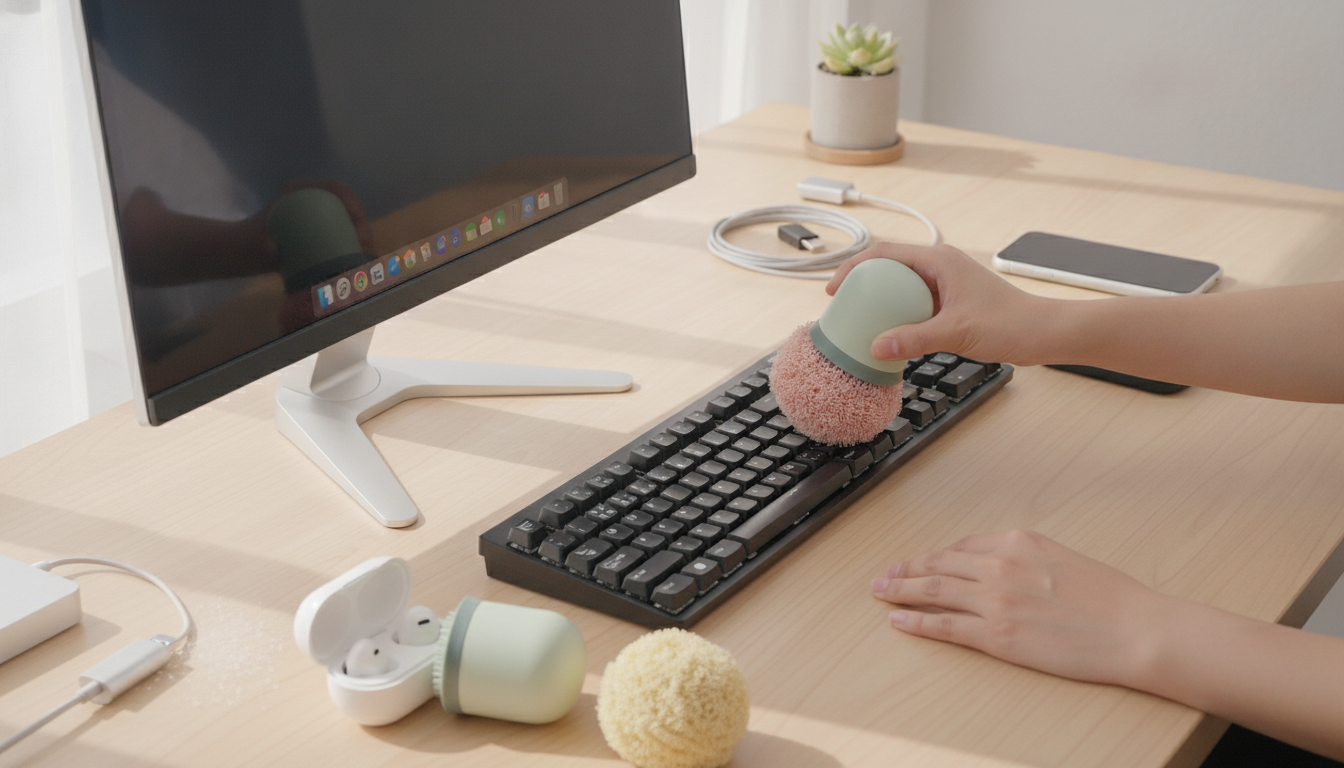
5PCS Nano Cleaning Ball Brush Set: Gentle Detail Cleaning for Keyboards, Screens, and Tight Corners
Dust and debris build up fastest in the places that are hardest to reach: between keys, around ports, inside vents, and along small seams on electronics and household items. A compact set of nano-style cleaning balls and brushes makes it easier to lift particles without aggressive scraping, helping keep surfaces looking clean and functioning smoothly. If quick “surface resets” are part of your routine—especially for keyboards, laptops, controllers, and car buttons—a multi-piece detail kit can save time while reducing the chance of grinding grit into delicate finishes.
What’s Included and What Each Piece Is For
A good detail-cleaning set works best when each piece has a clear job. The 5PCS Nano Cleaning Ball Brush Set is built around two simple actions: sweep debris loose, then lift it away.
- Nano cleaning balls: Designed to pick up fine dust and crumbs from crevices by pressing/rolling rather than grinding. This “lift” approach is helpful in tight gaps where wiping can just smear particles around.
- Detail brushes: Useful for sweeping debris out of seams, around buttons, and along edges before picking it up. Brushing first keeps the cleaning ball from pushing debris deeper into corners.
- Best-fit tasks: Keyboards, laptop vents, earbuds cases, camera gear exterior, car interior buttons, and remote controls.
- When to avoid: Visibly wet spills, heavy grease, or abrasive grit that could scratch. If you suspect grit (sand, metal filings), remove it first with gentle air or a very soft brush—then switch to lifting tools.
Where It Works Best Around Electronics
Electronics collect a mix of lint, skin flakes, crumbs, and fine dust. The safest approach is usually “dry first, liquids last,” especially near openings and seams. For broader guidance, reputable references like iFixit’s electronics cleaning guide and CNET’s laptop screen and keyboard tips emphasize gentle tools, minimal moisture, and careful handling.
- Keyboards and mechanical switches: Dislodge debris between keycaps, around stabilizers, and along the frame lip.
- Laptop and desktop exteriors: Clear dust lines near hinges, speaker grills, and trackpad borders.
- Ports and seams: Sweep around USB/HDMI openings and case gaps (avoid pushing debris deeper into ports).
- Screens and glossy plastics: Use light pressure and keep tools clean to reduce risk of streaks or micro-scratches.
- PC case vents and fan grills: Brush loose dust first; finish by lifting residual particles from corners.
Common cleanup spots and the gentlest approach
| Area | Typical debris | Recommended tool action | Caution |
|---|---|---|---|
| Keyboard gaps | Crumbs, hair, dust | Brush to loosen, then press/roll cleaning ball to lift | Avoid heavy pressure on key stems |
| Laptop hinge seam | Fine dust | Light brush strokes along seam | Keep bristles off display edge if gritty |
| PC vent grills | Dust mats | Brush outward, then lift remaining dust at corners | Do not poke through grill into fan blades |
| Remote control buttons | Skin oils + dust | Brush edges, lift particles from button perimeter | For sticky residue, use proper electronics-safe wipes separately |
| Earbud case groove | Lint | Brush groove, lift lint clumps | Avoid contact with charging pins |
Step-by-Step: Cleaning a Keyboard or Laptop Safely
This routine focuses on minimizing pressure, avoiding moisture in risky areas, and keeping debris moving out and away—rather than deeper into your device.
Cleaning Tips That Prevent Damage
- Use minimal pressure: Gentle contact reduces the chance of scratching delicate plastics and coatings—especially on glossy trims and displays.
- Keep tools clean: A dirty cleaning ball or brush can drag grit across a surface. If you drop a tool on the floor, inspect it before using it on a screen or glossy panel.
- Avoid liquids on dry-pickup tools: Unless the manufacturer explicitly allows washing, keep the tools dry. If you do wash them, let everything dry completely before reuse.
- Don’t force debris into ports: Brush away from openings rather than pushing inward. Ports can trap lint, and pushing it deeper can make contact issues worse.
- Mind static safety: For exterior cleaning, avoid aggressive rubbing that generates excessive static. For internal PC work, follow ESD best practices from sources like the ESD Association.
Who This Set Is For
Product Snapshot
- Main pick: 5PCS Nano Cleaning Ball Brush Set (dry detail cleaning for small gaps and surfaces)
- Set format: Multiple pieces for different angles and crevice sizes
- Best pairing: Microfiber cloth for the final wipe; compressed air for blowing out thick dust before lifting residue
- Also useful for optics-heavy gear: If you maintain devices with external housings and lots of seams—like a telescope mount, control buttons, or accessory cases—detail brushes help keep contact points clean. Browse gear like the 125mm F10 Schmidt-Cassegrain Computerized GoTo Astronomical Telescope with StarBright XLT and plan for gentle, dry exterior upkeep around controls and vents.
- Availability: In stock
FAQ
What do you clean PCs with?
Power down and unplug first, then use a soft brush and microfiber cloth for exterior dust, plus short bursts of compressed air for vents. For tight crevices and crumbs around keys and seams, use a gentle detail tool that lifts debris rather than scraping, and avoid harsh household cleaners or excess liquid near electronics.












Leave a comment