


First-Time Phone Setup: Quick Start (iPhone & Android)
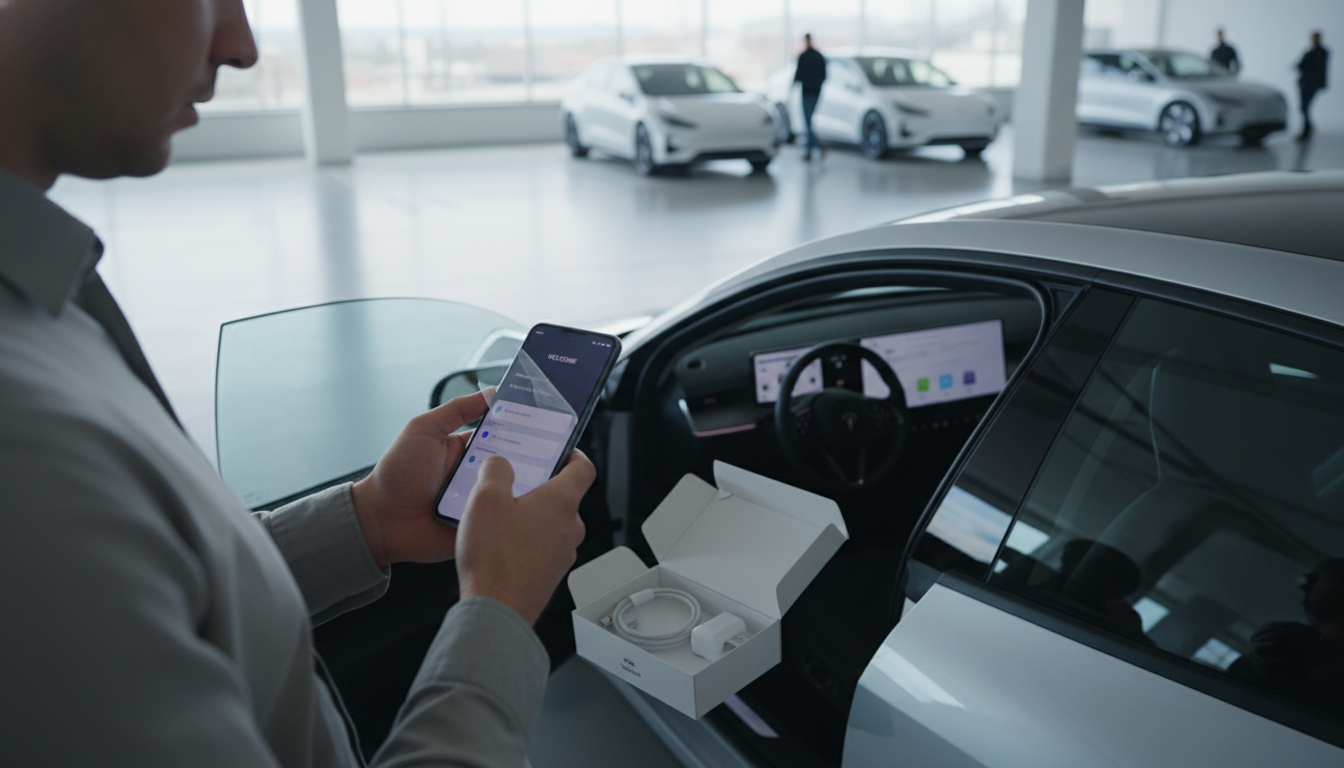
How do I set up my phone for the first time?
First-time phone setup is mostly about connecting to Wi‑Fi, signing in, securing the device, and restoring what matters—contacts, photos, and apps. Plan for 15–30 minutes, plus extra time if you’re moving lots of data from an old phone.
1) Power on, pick language, and connect
Turn the phone on, choose your language and region, then connect to a reliable Wi‑Fi network. Wi‑Fi speeds up updates and makes restoring backups smoother. If Wi‑Fi isn’t available, you can use cellular data, but large restores may be slower or restricted.
2) Sign in to your account (Apple ID or Google)
Sign in with your Apple ID on iPhone or your Google account on Android. This unlocks core services like app downloads, cloud backup, contacts syncing, and device finding tools. If you don’t remember your password, use the on-screen recovery option before continuing.
3) Secure your phone right away
Create a passcode/PIN and enable Face ID/Touch ID or fingerprint unlock if available. Turn on “Find My” (iPhone) or “Find My Device” (Android) so you can locate, lock, or erase the phone if it’s lost.
4) Restore or transfer your data
If you’re upgrading, choose to restore from a cloud backup or transfer directly from your old phone. Keep both devices charged and nearby. Verify after the transfer that your contacts, photos, and messages appear, then sign into key apps (banking, email, social) as needed.
5) Update, customize, and double-check essentials
Install system updates, set your time zone, and review privacy settings (location, microphone, camera permissions). Add email accounts, set up Wi‑Fi calling if your carrier supports it, and confirm your emergency contacts and medical ID features if you use them.
For a more detailed walkthrough and troubleshooting tips, visit https://splendena.com/how-do-i-set-up-my-phone-for-the-first-time/.
FAQ
What should I do if my phone won’t activate during setup?
Confirm you’re connected to Wi‑Fi or a strong cellular signal, then restart the phone and try again. If you use a physical SIM, reseat it; if you use eSIM, verify your carrier activation details. If activation still fails, contact your carrier to check for account or SIM provisioning issues.










Leave a comment